

Altware Pager Firmware
|
Where are you located? |
If you are in the USA, choose the USA version. Otherwise, choose the Non-USA version. Use the same selection for all of your devices! |
Note: The Blackout Comms secure off-grid messaging and location firmware is a licensed product. Certain features may require purchase of a license.
|
Blackout Comms for Altware Pager
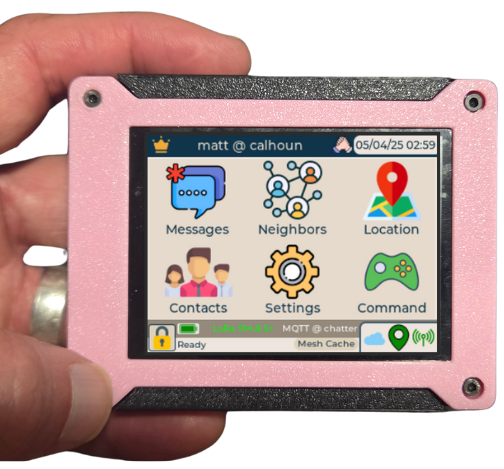
This is not for Lilygo Pager! If you have that device, go to the Lilygo Pager Firmware Installer page.
|
For the very first install to the device, or if the steps above do not work, you may need to hold the boot button while tapping the reset button. If that's the case...
|
|
By downloading this firmware, you are agreeing to the terms, agreeing to abide by all laws and regulations while using this firmware, and agreeing to hold harmless the developer, Altware Development LLC. Altware Development LLC is not responsible for any data loss or other issues that might arise with with your device before, during, or after flashing. Unless you agree to those terms, don't use this tool or download our firmware.
Alternative Flash Instructions: If you know what you are doing and want to install mesh tdeck firmware
using a different install tool, you may download the pre-built binary here (USA): Pager
Alternative Flash Instructions: If you know what you are doing and want to install mesh tdeck firmware
using a different install tool, you may download the pre-built binary here (Non-USA): Pager
|
|